

 Platform
 W&B Models
 W&B Weave
 W&B Inference
 W&B Training
 Release Notes
Overview
Annotation queues let you route selected traces to domain experts for structured review without requiring them to navigate the full Weave UI. You define what feedback is collected, select which traces require review, and later can export completed annotations for analysis or dataset creation. Use cases can include:- Manual trace scoring: Have SMEs rate model outputs on correctness, quality, or style.
- Failure analysis: Annotate failure modes (hallucinations, refusals, loops) to understand where your model breaks.
- Domain expert review: Enable medical, legal, or safety experts to review content with a task-focused interface.
- Dataset creation: Turn annotated traces into evaluation or training datasets.
End-to-end workflow
The following workflow summarizes how to use annotation queues to obtain reviews:- Define annotation fields.
- Create an annotation queue.
- Load traces into the queue for review.
- Monitor progress while domain experts complete reviews.
- Filter and export completed annotations.
Define annotation fields
To start creating an annotation queue, you must define your annotation fields first so that they can be selected during queue setup. Annotation fields define the feedback that the annotator provides for each trace item. Fields are reusable across queues and projects. Field types include:- Boolean judgments such as correctness or acceptability.
- Numeric or integer values such as quality or confidence.
- Categorical labels such as failure mode or intent.
- Free-form text for qualitative feedback.
- Navigate to wandb.ai and select your project.
- In the Weave project sidebar, click Annotate. If you don’t see Annotate, it might be nested in the menu under More.
- In the tab bar, click the Fields tab.
- In the Fields table toolbar, click New Field.
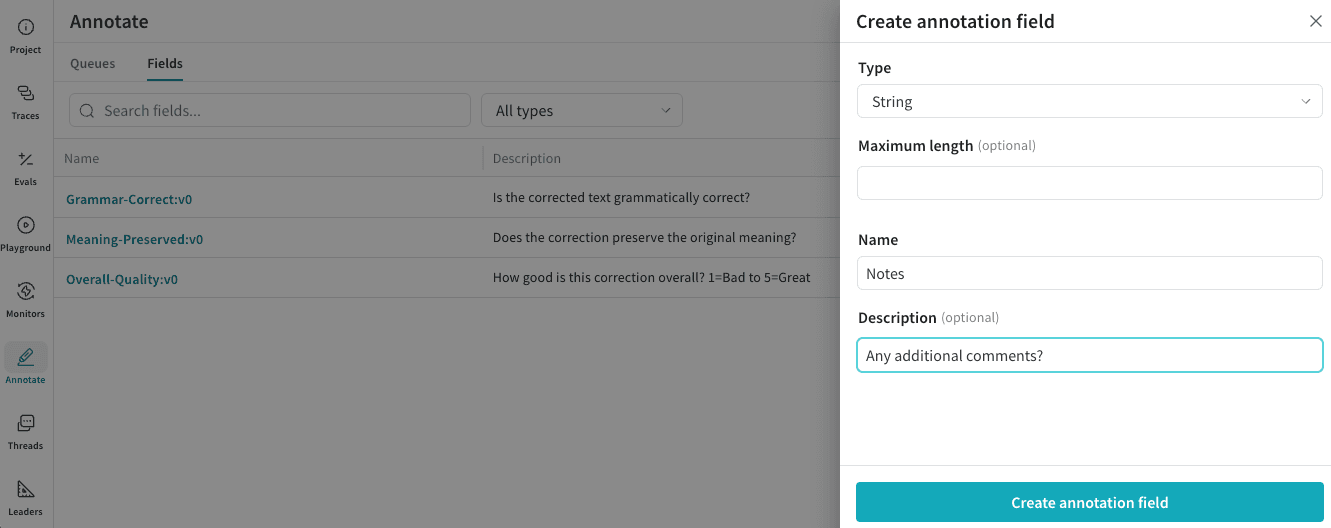
- In the Create annotation field modal dialog, configure:
- Type: Boolean, Integer, Number, String, or categorical options.
- Name: Name of field to be displayed to the annotator.
- Description (Optional): Details for evaluating this field to be displayed to the annotator.
- Click Create annotation field to save the field.
Create an annotation queue
An annotation queue consists of:- A set of annotation fields.
- Guidelines that provide task instructions for annotators.
- A collection of trace items awaiting review.
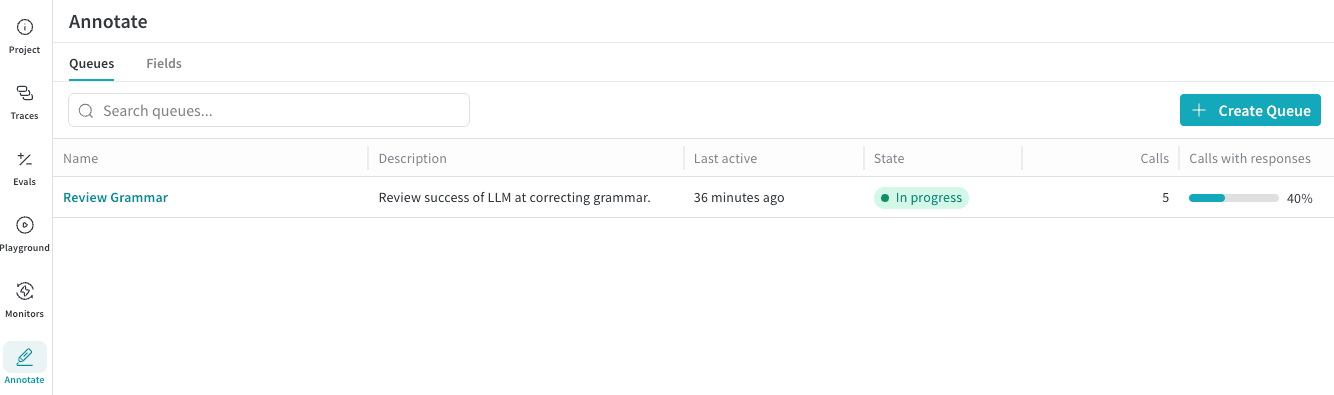
- In the Weave project sidebar, click Annotate.
- In the tab bar, click the Queues tab.
- In the Queues table toolbar, click Create Queue.
- In the Create Annotation Queue modal dialog, configure:
- Queue name: This is the queue name the annotator selects to complete their work.
- Guidelines (Optional): Any additional instructions for the annotator.
- Click Next.
- Click Manage fields and choose what Annotation Fields to include in this review work. All existing Annotation Fields for the Project are available for selection.
- After you have selected all the Fields for the queue, click Create Queue to save the queue.
Add traces to a queue
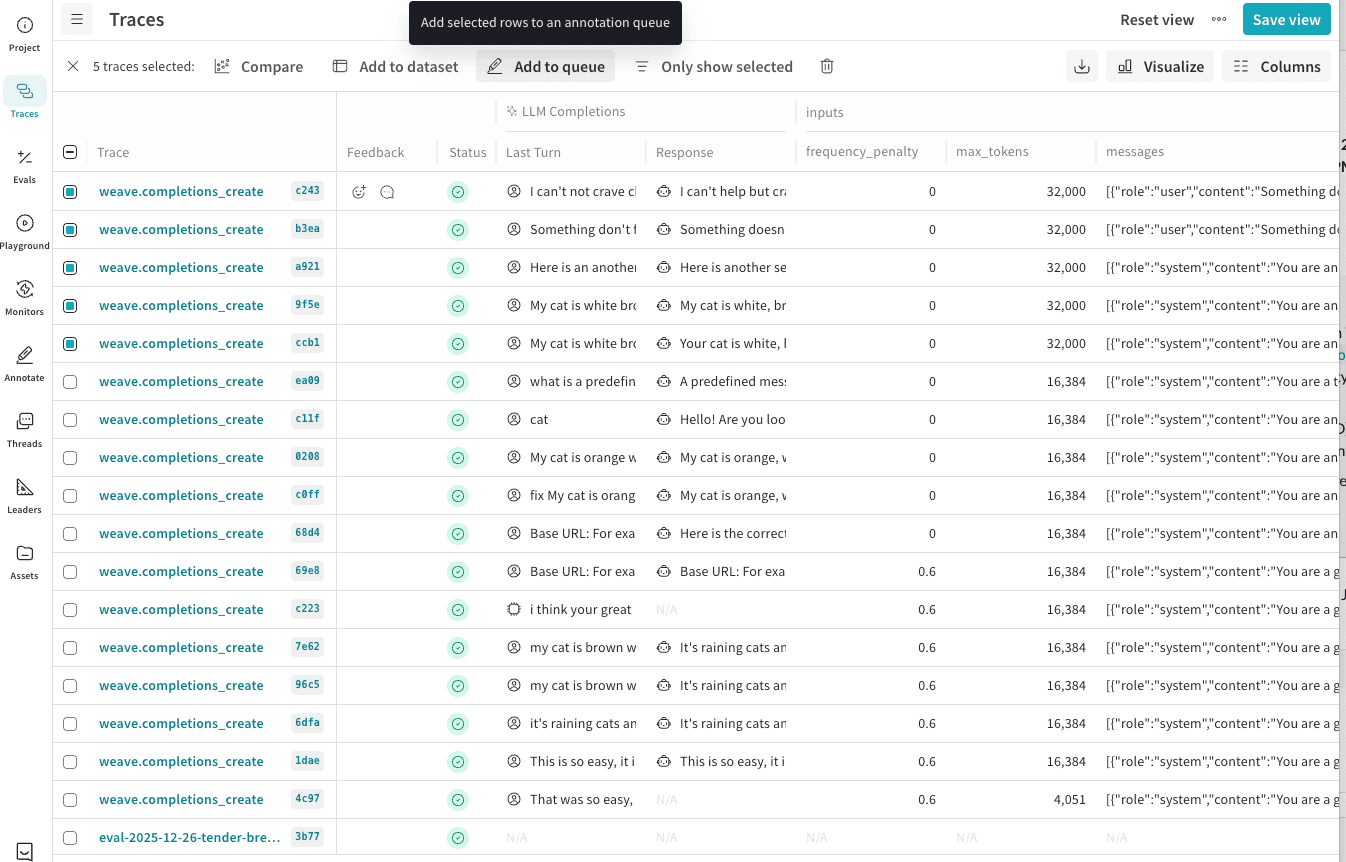
Traces can be added to an annotation queue directly from the Traces page. To add traces to an annotation queue:- In the Weave project sidebar, click Traces.
- In the Traces table toolbar, filter traces as needed (such as by hallucination scores, failure modes, or specific ops).
- In the table, select the traces you want annotated.
- In the table’s action bar, click Add to queue to add the selected rows to an annotation queue.
- In the Add to annotation queue modal dialog, configure:
- Queue Name: In the list, select the name of the existing queue to add these traces to.
- Select trace data to display: Select the Weave trace data elements to display to the annotator as they are evaluating the results.
- Inputs: Select which trace input fields to show during annotation.
- Outputs: Select which trace output fields to show during annoation.
- Click Add [Count] traces to annotation queue to assign these traces as a part of the annotation queue review.
Monitor review progress
Once you have created the annotation queue and added traces to it, share the queue name with your annotator for them to begin their review. See Review items in an annotation queue for details on the review process. To share a direct link to the annotation queue with an annotator:- In the Weave project sidebar, click Annotate.
- In the tab bar, click the Queues tab.
- In the Annotation Queues table, click the name of your queue to open the queue items.
- In the Queue header bar, click the link button to copy a direct link to this queue. You can also copy the URL from the browser address bar.

- Not started: Queue has items but no annotations have been submitted.
- In progress: At least one item has been reviewed.
- Completed: All items have been reviewed.
Filter and export annotations
Weave stores completed annotations as structured metadata on traces. You can:- Filter traces by queue assignment and annotation completion.
- Save filtered views for reuse.
- Export annotated traces to datasets for evaluation or training workflows.
Filter annotated traces
You can use the filter controls of the Traces page to display only traces with annotations. To view only traces with annotations:- In the Weave project sidebar, click Traces.
- In the Traces table toolbar, click Filter.
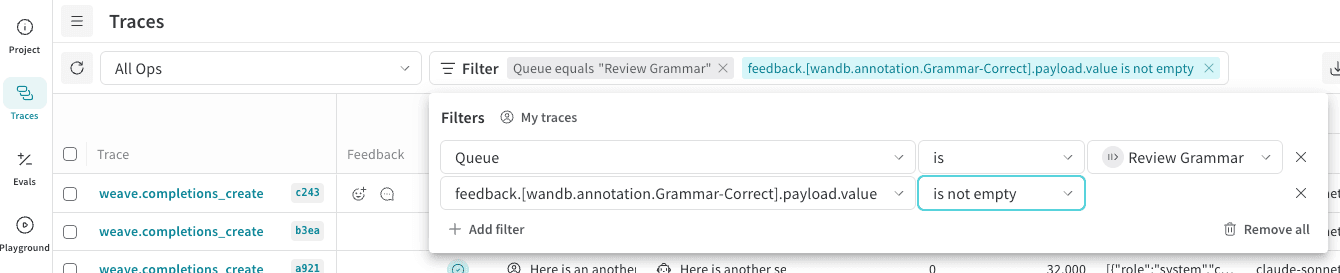
- Add three values to a filter row:
- For Column, type “Queue”, then press Enter.
- For the second list, choose Text: “is”.
- For Select a queue, choose your annotation queue name.
- To also filter on ‘completed’ queue items only, click + Add Filter:
- For Column, type “feedback”. A dialog will populate with Annotations and includes your Annotation Field names. Choose a required Field from your queue.
- For the second list, choose Other: “is not empty”.
- Filter rows are automatically applied; click elsewhere in the page for the filter entry to close.
- (Optional) Save as a view for quick access. In the Traces table header, click Save View.
Export annotated traces to datasets
You can export annotated traces either through the UI or programmatically, depending on how you plan to use the data.Add annotated traces to a dataset
Select annotated traces and click Add to Dataset to include expert labels in your eval or training data. To add annotated traces to a dataset:- In the Weave project sidebar, click Traces.
- In the Traces table, select the traces that you want to export.
- In the table toolbar, click Add to dataset. Follow the on-screen prompts to complete the addition.
Access annotations programmatically
If you want to integrate annotations programmatically, you must know your project name and queue ID:- Project: The W&B project name (can be project or team/project). If you don’t specify a W&B team (such as “team/project”), your default team is used.
- Queue ID: The annotation queue’s unique identifier.
- In the Annotation Queues table, select the name of the queue to open its items.
- Copy the ID from the end of the page URL.